
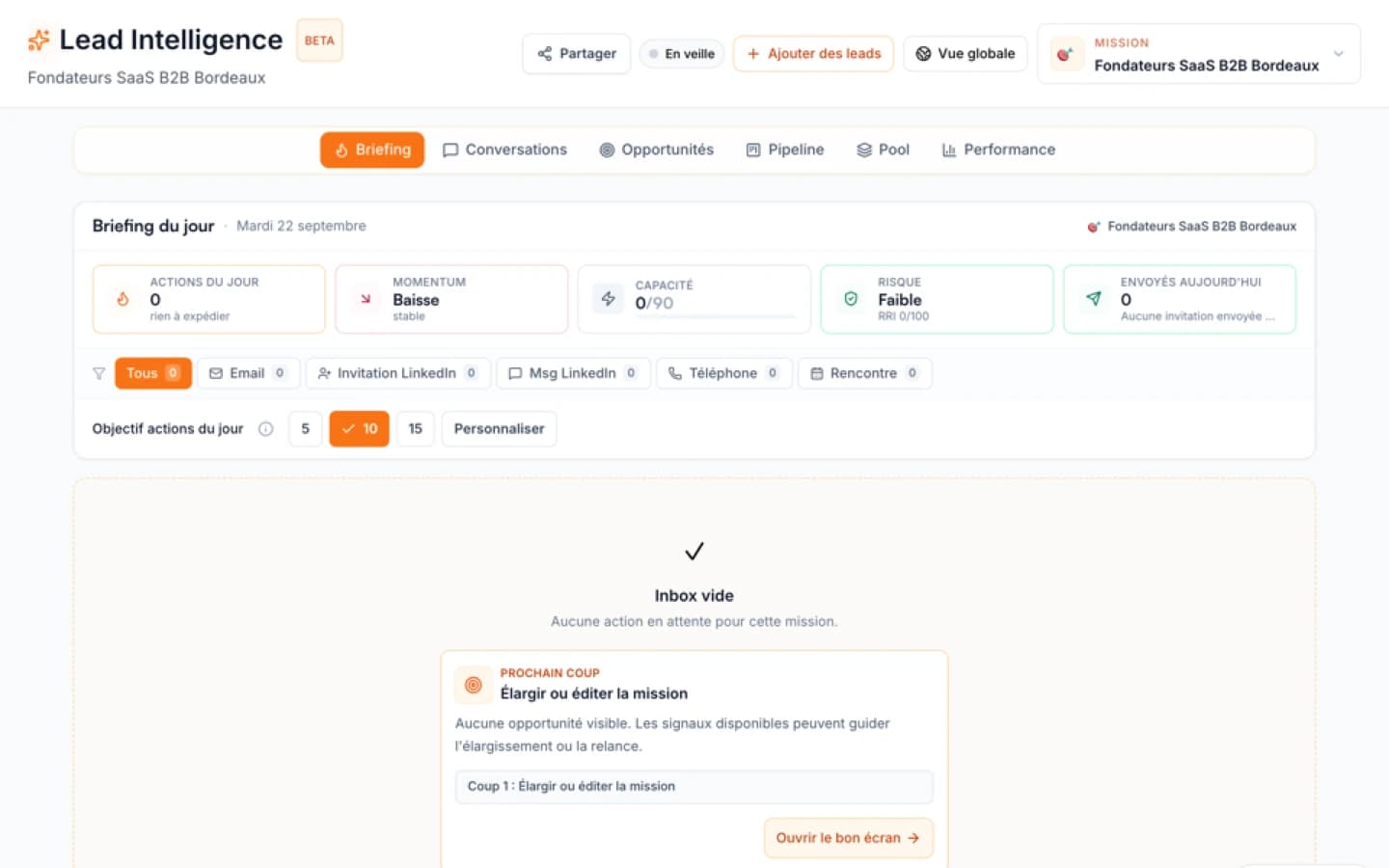
You spent hours building searches in Sales Navigator: function, seniority, company size. They are saved, and they surface dozens of profiles every week. What remains is the question that costs the most time: who to write to first, and not twice to the same person?
This article does not compare Sales Navigator with Lead Intelligence, a comparison already exists. It covers the case of a founder who keeps Sales Navigator and wants to use it as a starting point.
What Sales Navigator already provides
According to LinkedIn’s page, Sales Navigator offers more than 50 filters (function, seniority level, years at company, experience), saved searches with real-time lead alerts, custom lists to group leads and accounts, alerts on job changes and a buyer intent signal showing which companies are showing interest. It is a very good tool to find who exists and follow what changes.
What the page does not say, and it is not its role, is how to split your time between these profiles, keep track of your messages and avoid duplicates between your campaigns. That part stays manual.
How Lead Intelligence connects to it
In a mission, the LinkedIn search tab uses your connected LinkedIn account. You authenticate on the sign-in page of the technical provider Ember uses, and Ember stores the account. There are two ways to search:
- Fill in the filters in Ember. The form adapts to your LinkedIn subscription: standard, Sales Navigator or Recruiter.
- Paste a search address. The provider’s documentation (Unipile) states that you can copy and paste the address of a search result, a saved search or a list of leads. In Ember, a Sales Navigator address is only accepted if the connected account has a Sales Navigator or Recruiter subscription; otherwise the search is refused with an explicit message.
The number of results returned is capped: up to 100 with Sales Navigator or Recruiter, 50 with a standard search. A cap is not a flaw if you work in targeted batches.
What the search filters before you choose
Before displaying results, Ember:
- removes people who match your do-not-contact list;
- flags those already in the current mission (greyed-out box);
- indicates those already in another of your missions, for information only, without blocking them.
You then choose the people to add. The rest of the journey (enrichment, signals, first-message draft) is the same as in other missions.
| Task | Sales Navigator | Lead Intelligence |
|---|---|---|
| Find profiles with fine filters | Yes, more than 50 filters according to LinkedIn | Reuses your search by its address, or a filter form |
| Follow job changes | Lead and account alerts | Signals attached to each prospect in the mission |
| Avoid duplicates between missions | Not documented on the page read | Flags people already present |
| Exclude people not to contact | Not documented on the page read | Filters search results |
| Prepare and track messages | LinkedIn messaging and InMail | Drafts, sending through your connected account, reply tracking |
Three caveats before relying on it
- Connected account. The LinkedIn search requires your LinkedIn account to be connected to Ember in settings; without it, the tab prompts you to connect. Open a mission to check that the “LinkedIn search” tab is offered to you before building your method on it. The Sales Navigator link option is only offered with a Sales Navigator or Recruiter subscription.
- LinkedIn’s rules. Your sends consume quotas and follow LinkedIn’s rules. For InMail credits, see Mastering Sales Navigator InMail Credits and Data Limits. No quota period is given here, because Ember’s sources disagree on that point.
- Prospecting law. Writing to people you do not know falls under data protection law. Have your counsel validate it before launching a campaign.
If you only have a few searches and write to few people each week, Sales Navigator alone is enough.
Sources
- Compare Plans and Pricing | LinkedIn Sales Navigator
- LinkedIn Sales Navigator Pricing: Plans and Costs (2026)
- Sales Navigator: buyer research, alerts and plan-specific engagement: source S1
- LinkedIn Sales Navigator: Trois plans et leur cible declaree
- LinkedIn Sales Navigator: Positionnement et volume de la base
- Ember Lead Intelligence, priorité commerciale contextualisée
- Méthode de prospection, signaux et première conversation
FAQ
Free diagnostic
Test your sales file
Drop an Excel or CSV and check its readiness without sending its rows to Ember.