
Preparing a pitch deck handover for prospective investors or enterprise buyers involves more than finalizing narrative copy. Handing over raw, uninspected files often leads to broken slide layouts caused by missing fonts, or worse, the accidental disclosure of internal margins, team commentary, and private speaker cues.
Executing an external deck handover requires two distinct technical workflows: font embedding to protect visual hierarchy across different operating systems, and document sanitization to strip internal review traces before any file leaves your domain.
Why Raw Presentation Files Break Layouts and Leak Context
When an external recipient opens a presentation file, their local software environment dictates how that document renders. If your deck relies on a non-standard brand typeface that the investor does not have installed locally, the host application silently replaces it with a generic system font. This font substitution shifts text boundaries, wraps lines unexpectedly, breaks carefully calculated column alignments, and can cause text boxes to overflow their graphic frames.
Beyond visual layout breaks, presentation files carry extensive document metadata accumulated during creation and internal review. Collaborative editing across co-founders, advisors, or marketing leads leaves behind tracked changes, reviewer identities, unresolved margin debates, and speaker notes originally drafted to prompt a live presenter. Sharing an unscrubbed native presentation exposes your internal deliberations to external parties.
Font Embedding in PowerPoint: Securing Cross-Platform Integrity
For teams delivering presentation files in PowerPoint formats, securing your design requires active font embedding. As documented in the Microsoft custom font guidance, embedding custom fonts prevents document styling and layouts from shifting when opened by someone without those typefaces installed, while stopping special characters from rendering as empty rectangles. Embedding custom typefaces also assists when executing online conversions to PDF files.
Font Formats and Licensing Constraints
Not every font file can be embedded into a slide presentation. PowerPoint supports TrueType (.TTF) and OpenType (.OTF) font formats for embedding, while PostScript formats (.PFB, .PFM) should be avoided.
Furthermore, font authors define embedding permissions within the font metadata. As detailed by Microsoft, creators set permissions to one of four levels:
- Non-embeddable: The file format blocks embedding entirely.
- Preview/Print: The recipient can view and print the deck with the intended font, but cannot edit text using that typeface.
- Editable: The recipient can view, print, and perform text edits using the embedded font.
- Installable: The recipient receives full rights to install the font locally on their workstation.
Before standardizing on a brand typeface, verify that its commercial license and technical embedding permissions allow file-level distribution.
Configuration Rules for PowerPoint
To configure font embedding within Microsoft 365 on Windows:
- Navigate to File > Options > Save.
- Scroll to the bottom and check Embed fonts in the file.
- Select between two embedding options:
- Embed only the characters used in the presentation: This option reduces overall file size, but strictly prevents the recipient from making further edits using that typeface.
- Embed all characters: This increases file size but ensures that external partners or colleagues can edit copy without triggering font substitutions. As Microsoft notes, you should avoid embedding only used characters if you expect the presentation to be edited by someone else.
If your deck uses heavy font families containing numerous weight variants, embedding full character sets can inflate the presentation file size significantly. Audit your slide master to ensure you are only loading the specific font weights utilized across your slides.
Sanitizing Internal Review Data and Speaker Notes
Stripping internal revision history and speaking cues is a separate technical requirement. A pitch deck sent as a teaser or follow-up asset should contain only customer- or investor-facing statements, not internal negotiation margins or presentation prompts.
Native Document Inspection in Microsoft PowerPoint
If you are delivering a PowerPoint presentation directly, use the built-in Document Inspector before dispatching the file. As highlighted in the Microsoft Document Inspector documentation, collaborative decks can contain ink annotations and review comments that reveal specific edits, reviewer identities, and unresolved team commentary.
The Document Inspector scans the presentation and enables you to scrub:
- Comments, annotations, and revision marks.
- Document properties, author metadata, and hidden organizational paths.
- Text entered into the presentation speaker notes.
However, note a key structural limitation identified by Microsoft: Document Inspector cannot remove images that have been inserted directly into the Notes section of a presentation. If your team pastes competitive screenshots, draft tables, or cap table calculations into the speaker note panels during rehearsals, those images must be removed manually before handover.
Sharing Options: Native Files versus Web Publishing
When collaborating within Microsoft 365, alternative distribution pathways exist. Microsoft provides a Publish to Web feature for enterprise users hosting documents on SharePoint. This tool creates a view-only online link that displays the presentation without exposing revision histories, tracked changes, or comments. However, access is restricted to enterprise SharePoint environments, requiring updates to be manually republished to reflect changes.
The following table summarizes the structural differences across common distribution formats when preparing an external handover:
| Handover Channel | Font Stability Risk | Internal Review Exposure | Offline Editing Capability |
|---|---|---|---|
| Raw PowerPoint without embedded fonts | High substitution risk on non-standard fonts | Full access to comments and revision metadata unless scrubbed | Fully editable by recipient |
| PowerPoint with embedded fonts and inspection | Preserved layout across systems supporting TrueType or OpenType | Hidden data and speaker notes stripped via inspection | Editable if embedded with full character set |
| Enterprise Publish to Web (SharePoint) | Maintained via cloud presentation player | Review history and comments hidden by default | View only, requires browser connectivity |
| Rasterized PDF export | Completely fixed visuals, zero font substitution | No speaker notes, metadata, or comments transferred | Static document, non-editable |
Structural Slide Generation and Handover Controls in Ember
Preparing decks that combine design consistency with clean external handover is supported natively through Creation, the visual generation module in Ember. Creation builds visual assets directly from validated business context rather than generic templates, outputting presentations as fixed-canvas web layouts.
When preparing collateral for sales calls, investor pitches, or board updates, teams often rely on distinct output pipelines. Founders building collateral through Ember Creation benefit from strict structural separation between internal working notes and external delivery formats:
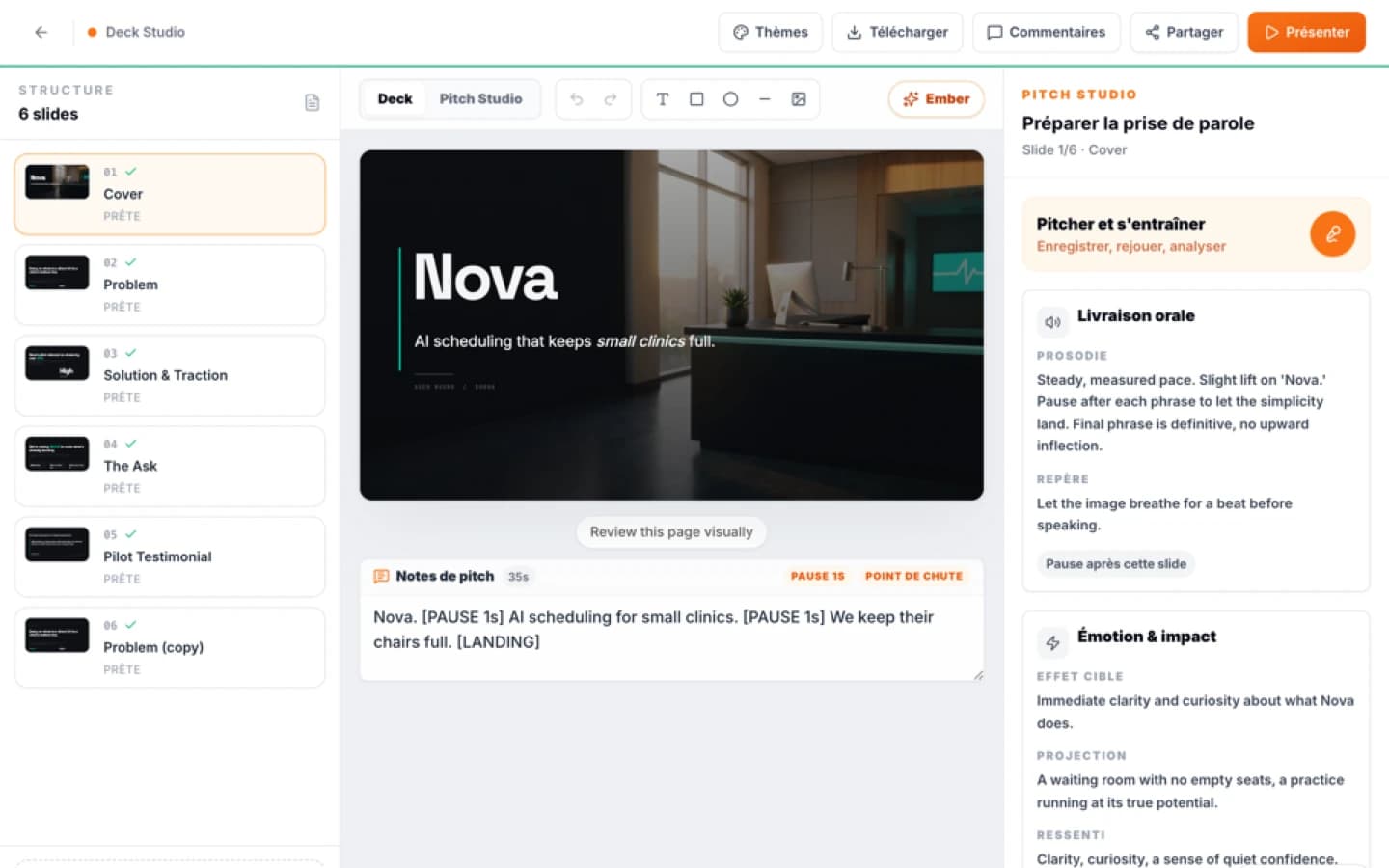
- Integrated Speaking Practice: Creation includes a dedicated speaking practice workflow allowing presenters to rehearse, record, and review deck delivery against pacing, structure, and clarity cues. These presentation notes and practice records are maintained separately page by page and are never packaged into external customer deliverables.
- Deterministic PowerPoint Export: When exporting a deck to PowerPoint (.pptx), Creation maps text boxes and visual assets cleanly while entirely omitting internal annotations, comments, and speaker cues from the resulting presentation file. Because the export references the primary font family without embedding font binaries into the file payload, founders planning to deliver editable PowerPoint files with non-standard typefaces can open the exported file in PowerPoint to configure font embedding directly.
- Protected PDF Delivery: For static delivery, Creation renders PDF exports as clean rasterized page images. This eliminates font substitution risks entirely across all operating systems and devices, while ensuring internal comments, revision logs, and selectable metadata remain completely absent.
- Instant View-Only Web Links: To share a deck without file attachments, owners can generate a unique 12-character public link from the presentation management dashboard. This web presenter serves purely the rendered slide content in full-screen view. It operates without requiring user accounts or logins, entirely suppresses internal notes, active editing tools, and object-level team comments, and can be revoked instantly at any time by selecting the disable link option.
For additional perspectives on aligning visual narrative structures with commercial outcomes, explore the Knowledge guides for marketing.
Pre-Handover Sanitization Checklist
Before sending any presentation file or review link to an external stakeholder, complete this operational audit:
- Verify Typeface Licensing and Format: Confirm your primary and secondary typefaces use TrueType (.TTF) or OpenType (.OTF) formats and carry embedding permissions that allow distribution.
- Configure Embedding Settings: If delivering an editable PowerPoint file, enable font embedding under save options. Choose full character embedding if you anticipate external revisions, or subset embedding if you need to constrain file size.
- Run Native Data Scrubbing: Run the Document Inspector to clear tracked changes, reviewer names, and text-based speaker notes.
- Audit Slide Master and Note Imagery: Visually scan slide masters for legacy layout artifacts and confirm no confidential data snapshots remain inside the slide note regions.
- Test on an Unconfigured Device: Open the final presentation file on a secondary workstation or mobile device that lacks your custom brand fonts to verify line wraps, character encodings, and layout boundaries before distribution.
Sources
- Microsoft, Benefits of embedding custom fonts : source S1
- Microsoft, How to Publish to Web in Microsoft Excel, Word, or PowerPoint : source S1
- Microsoft, Remove hidden data and personal information by inspecting documents, presentations, or workbooks : source S2
- Ember Création, artefacts visuels éditables
FAQ
Mini audit
Test your Pitch Deck
Get an initial diagnosis of substance, form and impact.