
As of the gradual 15-day rollout starting on September 2, 2026, Google introduced persistent custom instructions to the Gemini side panel in Google Slides, Sheets, and Gmail, as documented by the Google Workspace Updates blog post. While this update removes the friction of re-entering tone, audience, and formatting guidelines for every slide generation, it creates an immediate data governance challenge: Google confirmed that there is no administrator control for this feature.
When individual team members configure persistent system prompts directly inside presentation software without centralized oversight, convenience often bypasses compliance. For organizations handling sensitive client briefs, merger evaluations, or proprietary product roadmaps, understanding the boundaries of this feature is essential to maintaining data confidentiality.
Understanding the Governance Gap in Gemini Custom Instructions
Custom instructions allow users to define preferences that shape every subsequent generative response across supported Workspace applications. In Google Slides, a team member might instruct Gemini to always format outputs for executive stakeholders, apply specific narrative structures, or follow a particular industry vernacular.
According to the official announcement on the Google Workspace Updates blog post, the feature is available to all Google Workspace customers with access to Ask Gemini in Drive and Chat or the Gemini side panel in Gmail, Sheets, and Slides. Because administrators cannot set global policies, disable the instruction field, or inspect what users write in these fields, custom instructions function as an unmanaged layer of shadow prompt engineering.
This setup creates two distinct administrative realities:
- Workspace administrators retain control over broader Gemini activation and Drive file access policies.
- Individual users hold total, unmonitored autonomy over the persistent steering rules that dictate how Gemini drafts and edits content across their personal workspace surfaces.
The Operational Risks: Context Bleed and Cross-Contamination
In collaborative enterprise workflows, presentation software rarely lives in a vacuum. Sales representatives, strategy leads, and consultants regularly switch between competing client accounts, distinct product lines, and varying clearance levels.
Persistent custom instructions operate across the entire user surface rather than scoping themselves to a single folder or presentation. This persistence introduces specific operational vulnerabilities.
Context Bleed Across Confidential Accounts
If a consultant working with a financial client adds custom instructions such as "Always frame strategic recommendations around our target acquisition partner," that steering prompt does not disappear when opening an unrelated deck for a different account. Because the instruction persists across Slides, Sheets, and Gmail, Gemini will continue applying that bias, potentially surfacing sensitive deal terminology or proprietary framing in unintended presentations.
Accidental Exposure of Sensitive Information
Employees often mistake instruction fields for project notebooks. When users paste non-disclosure agreement details, unreleased financial figures, or customer lists into custom instructions to force the model to memorize company facts, those details become part of the background prompt sent with every subsequent interaction in that side panel.
Divergence from Brand and Regulatory Standards
Without admin templates, each employee defines their own interpretation of tone and evidence. In regulated sectors such as healthcare or financial services, unauthorized disclaimers, unvetted claims, or conflicting metric definitions can easily creep into client presentations unnoticed.
What Administrators Can and Cannot Control
While administrators cannot govern the custom instructions dialog itself, Google Workspace provides broader infrastructure controls that help mitigate downstream exposure. According to the Google Workspace Blog on enterprise security controls, Gemini inherits core Workspace tenant protections, meaning customer data remains confidential within the organization and is not used to train shared public models.
Understanding where administrative control stops and where platform safeguards begin allows security leaders to design realistic boundaries.
| Governance Area | Available Admin Control | Scope and Limitations |
|---|---|---|
| Custom Instructions Field | None | Users configure instructions individually without admin audit logs or disable toggles |
| Feature Activation | Organizational Unit toggles | Admins can turn Gemini access on or off entirely by user group or department |
| File Retrieval Access | Drive Trust Rules and DLP | Restricts which Drive files Gemini can index based on existing user permissions |
| Sensitive File Exclusion | IRM and Client-Side Encryption | Files with download, print, or copy blocks are excluded from Gemini retrieval |
| Prompt History Auditing | Google Vault (Gemini App only) | Vault cannot export or audit prompts executed inside Workspace side panels |
As outlined in the Google Workspace Blog on enterprise security controls, Data Loss Prevention (DLP) policies that enforce Information Rights Management (IRM) prevent Gemini from retrieving protected files when generating slide content. Similarly, Client-Side Encryption (CSE) ensures that encrypted data remains completely indecipherable to generative assistants. However, audit logging via Google Vault applies only to the standalone Gemini app; Gemini inside Workspace apps does not store prompt history for central administrative export.
Google Slides Native Drafting vs. Scoped Project Workspaces
For organizations heavily integrated into Google Drive, the native Gemini side panel provides undeniable workflow speed. As documented on the Google Slides product overview and the official Google Docs and Slides Help page, users can generate fully editable presentations directly from Drive sources, review generated outlines, and collaborate using real-time browser editing and comments. For teams evaluating broader ecosystem trade-offs between productivity suites, examining PowerPoint Copilot vs Google Slides Gemini for Sales Teams provides useful context on how native suites approach integrated assistant workflows.
The critical distinction lies in how context is scoped:
- Suite-Wide Personal Assistants (Google Slides): Prompts and custom instructions sit at the personal profile level. Gemini accesses documents based on broad user permissions across Drive, relying on the user to ensure instructions do not conflict between projects.
- Dedicated Project-Bound Systems: Platforms designed around distinct project workspaces isolate source documents, narrative rules, and visual output strictly by assignment, preventing cross-client contamination.
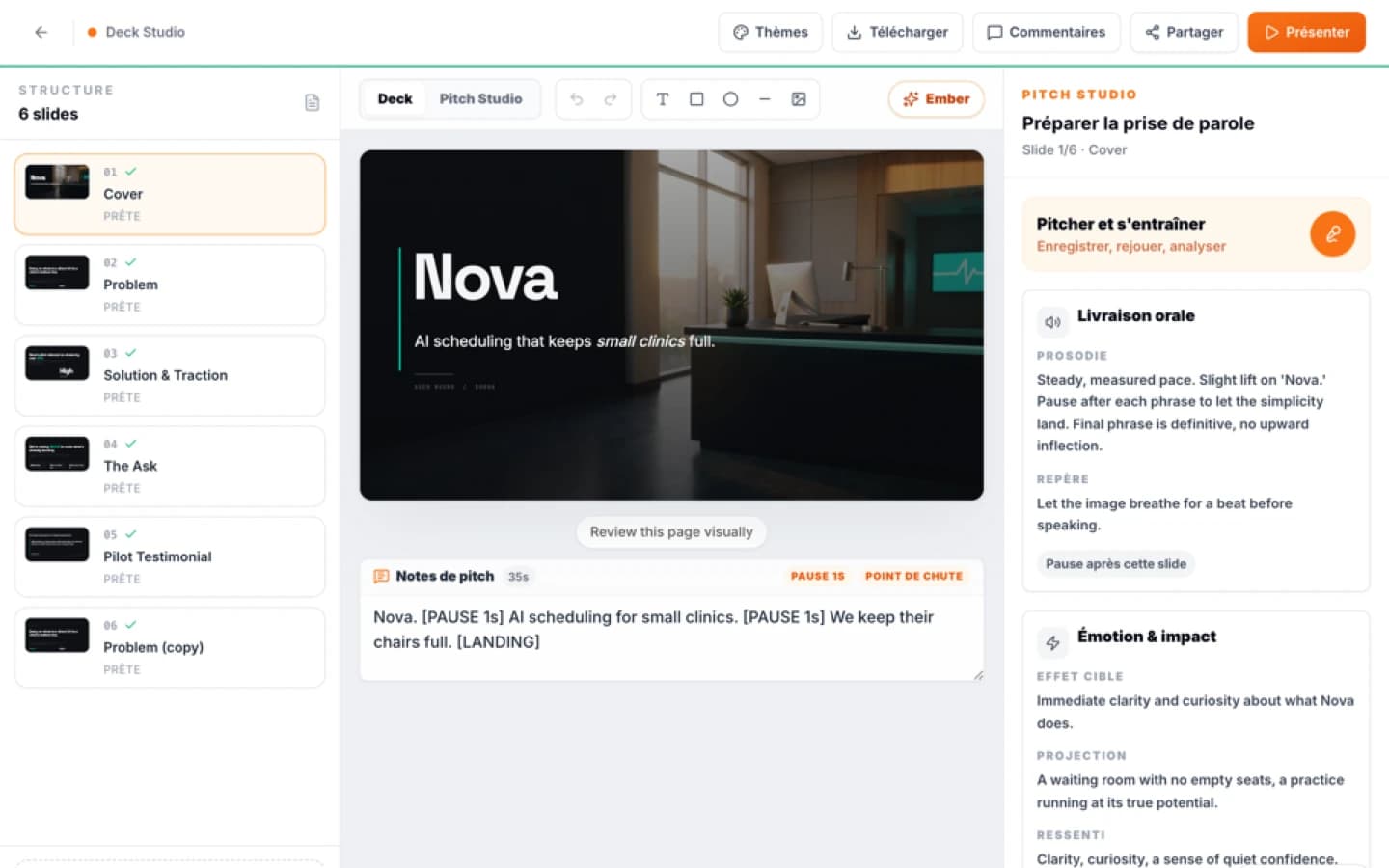
In Ember Creation, slide decks and visual assets are built directly from an isolated project context rather than floating, user-level steering prompts. Decks export to PowerPoint (.pptx) or PDF, while seven other asset formats export to PNG. Because generation references the specific project library rather than ambient user instructions, facts are preserved, estimates are distinguished from verified data, and metrics lacking complete citation are explicitly marked with an approximation symbol. For deck preparation, Ember includes a dedicated speaking practice workspace with recording, timers, and rehearsal diagnostics up to 15 minutes, keeping presentation prep contained within the specific deal or narrative file.
Actionable Guardrails for Enterprise Deck Production
Because Google Workspace does not offer an administrative kill switch for custom instructions in Slides, IT and compliance leaders must deploy compensating administrative and procedural controls:
- Segment Access by Organizational Unit: Restrict Gemini access to departments where free-form generative drafting poses low regulatory risk. Exclude units dealing with strict insider information, legal compliance, or active mergers until centralized controls emerge.
- Mandate IRM on Confidential Briefs: Apply Information Rights Management rules to sensitive Drive files to automatically prevent Gemini from reading or summarizing those documents during ad-hoc slide creation.
- Establish Clear Prompt Hygiene Policies: Explicitly prohibit staff from pasting customer names, API keys, deal terms, or confidential figures into the custom instruction sidebar.
- Isolate High-Stakes Presentations: For investor materials, strategic board decks, or multi-client advisory deliverables, use dedicated project workspaces where assets, metrics, and narrative frameworks remain hermetically sealed from daily personal email and chat prompts.
Sources
- Connexion à la console d'administration impossible
- Enterprise security controls for Gemini in Google Workspace
- As an administrator, I am unable to activate Ask Gemini.
- Google Workspace : les instructions personnalisées de Gemini arrivent dans Slides, Sheets et Gmail (déploiement dès le 2 septembre 2026) : source S1
- Google Slides: source-grounded Gemini drafts and shared editing: source S1
- Google Slides: source-grounded Gemini drafts and shared editing: source S2
- Ember Création, artefacts visuels éditables
FAQ
Mini audit
Test your Pitch Deck
Get an initial diagnosis of substance, form and impact.